Google Sheets
Create a new Google Sheet
-
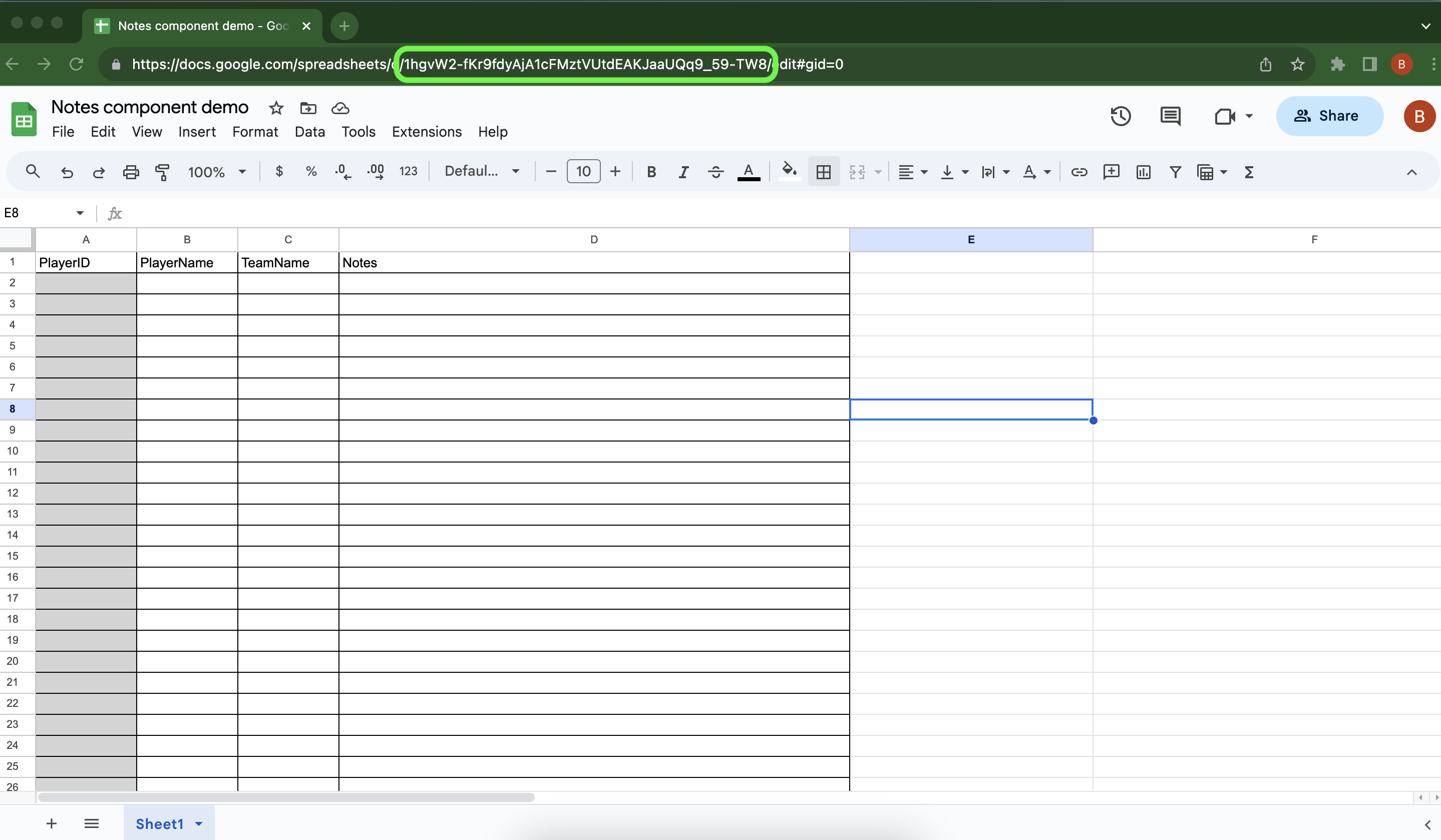
Add 4 columns: [PlayerID], [PlayerName], [TeamName], [Notes].
Share with TruMedia integrations email
-
Open the Share Google Sheets menu.
-
Copy and paste the email address below into the Add people and groups box:
-
Tap Send and select Share Anyway when prompted.
Copy SpreadsheetID
-
Copy the SpreadsheetID from the Google Sheets URL.
Custom Page Builder
Create Notes component
-
Open the Custom Page Builder.
-
Add a Notes component where you want these notes.
Connect Google Sheets to the notes component
-
Select Component Settings > Google Sheets.
-
Paste the SpreadsheetID in the Spreadsheet ID box.
-
Open PlayerID Col menu and choose [playerID].
-
Open Note Col menu and choose [Notes].
The Note Col menu tells the computer where to put the notes in this column on the Custom Page.
Add a title for the component
-
Hover over the component.
-
Select Component Settings.
-
Open the Title box and type a title for your graphic.
Export the team roster
-
Search a team.
-
Select the roster page.
-
Set the Filters and Qualifications to determine which players to include on the roster export.
-
Export the roster to a .csv file.
Turn the Display Columns Only setting off.
If it is on, the playerID column will not download.
Add the roster to Google Sheets
-
Open the .csv file and copy the [playerID] and [playerFullName] columns in the exported .csv file.
-
Paste them in the Google Sheet.
-
Add a [TeamName] column in the Google Sheet to organize the players by team.
-
Write notes for each individual player in their row of the [Notes] column.
Confirm the notes added on a Custom Page
-
Search the team on TruMedia
-
Select the roster page.
-
Open the Custom Page you created.
-
Search a player you wrote notes for and confirm they are on the Custom Page.
Pro Tips
Adjust the alignment of the note
-
Hover over the component
-
Select Component Settings.
-
Open the Vertical Alignment menu and choose an option.
-
Open the Horizontal Alignment menu and choose an option.
Change font size of the note
-
Hover over the component
-
Select Component Settings > Google Sheets.
-
Open the Note Font Size menu and choose an option.
Contact Us